Quick Summary
The 25,569-Day Gap: Two Clocks That Never Agreed On Jan […]
The 25,569-Day Gap: Two Clocks That Never Agreed • The Core Formula: How It Actually Works • Applying Custom Cell Formatting
The 25,569-Day Gap: Two Clocks That Never Agreed
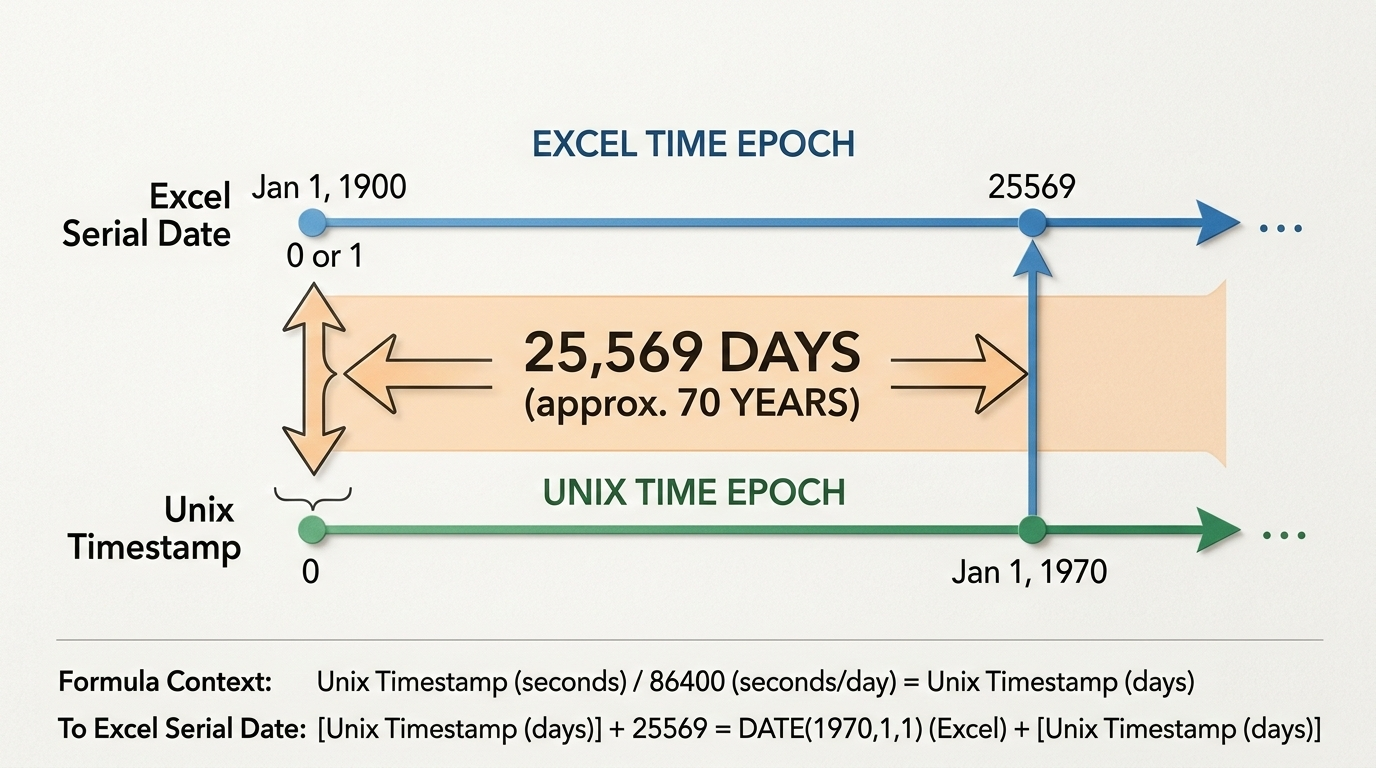
On January 1, 1900, Microsoft Excel started counting days. On January 1, 1970, Unix started counting seconds. For over a century, these two systems coexisted without ever speaking the same language. The gap between their starting points is exactly 25,569 days — and bridging it is the key to every epoch-to-Excel conversion.
To make Excel convert epoch to datetime, divide the timestamp by 86,400 (seconds per day) and add Excel’s base date offset. The exact formula:
=(A1/86400)+DATE(1970,1,1)
After entering the formula, apply Custom Cell Formatting using mm/dd/yyyy hh:mm:ss to reveal the human-readable calendar date and time.
The Core Formula: How It Actually Works
Excel and Unix track time on fundamentally different axes. Excel counts continuous days starting from January 1, 1900. The Unix epoch counts continuous seconds starting from January 1, 1970. According to Exceljet, a standard 24-hour day contains exactly 86,400 seconds.
The conversion process is a two-step bridge:
- Divide the Unix timestamp by 86,400 — this converts seconds into days.
- Add the Excel date offset — this aligns the Unix epoch (1970) with Excel’s calendar (1900).
As noted by Microsoft Q&A, the offset between the two systems is exactly 25,569 days. You can express this in your formula as either the raw number 25569 or the function DATE(1970,1,1).
Place your epoch timestamp in cell A1 and enter =(A1/86400)+DATE(1970,1,1) in cell B1.
Applying Custom Cell Formatting
The formula returns a decimal like 44538.66 — Excel’s internal representation of a date. To make it readable:
- Select the cell.
- Press
Ctrl + 1to open Format Cells. - Click the “Custom” category.
- Type
mm/dd/yyyy hh:mm:ssin the Type field. - Click OK.
The decimal transforms into a readable date string.
The Digit Count Trap: 10-Digit vs 13-Digit Timestamps
Standard Unix timestamps are 10 digits and measure seconds. But API exports and telemetry logs frequently use 13-digit millisecond timestamps for higher precision. Apply the standard formula to a 13-digit value and you will get a date thousands of years in the future.
According to Excel Insider, you must adjust the divisor to 86,400,000 for millisecond data — this converts milliseconds to seconds and seconds to days in one step.
| Timestamp Type | Digit Count | Required Formula |
|---|---|---|
| Standard Seconds | 10-digit | =(A1/86400)+DATE(1970,1,1) |
| Milliseconds | 13-digit | =(A1/86400000)+DATE(1970,1,1) |
Getting this wrong is one of the most common mistakes when working with exported API data.
Timezone Adjustments: From UTC to Local Time
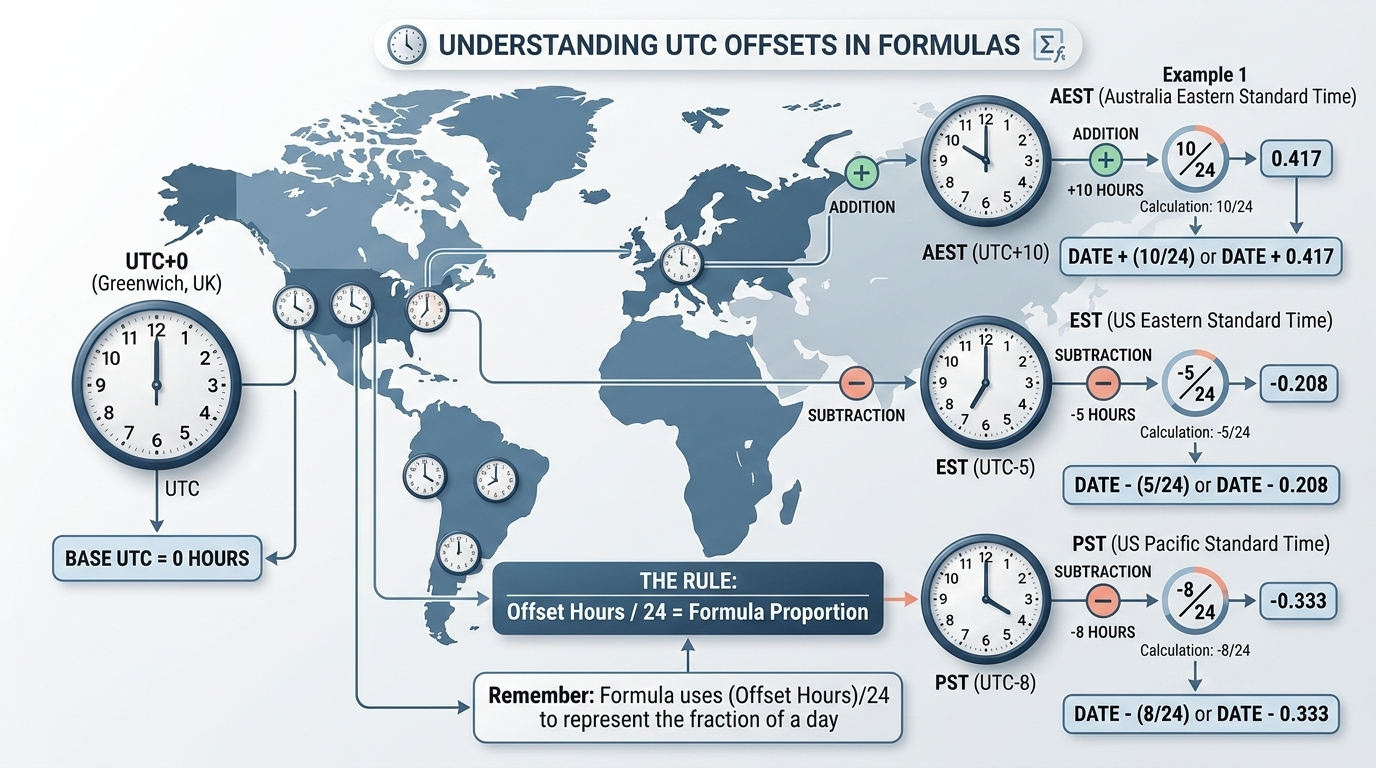
Unix epoch time is always recorded in UTC. Your converted formula outputs UTC by default. To get your local time, add or subtract the hour difference as a fraction of a 24-hour day.
The pattern: append +(hours/24) or -(hours/24) to the end of the core formula.
Major Timezone Reference
| Time Zone | UTC Offset | Excel Formula |
|---|---|---|
| Eastern Standard Time (EST) | UTC-5 | =(A1/86400)+DATE(1970,1,1)-(5/24) |
| Pacific Standard Time (PST) | UTC-8 | =(A1/86400)+DATE(1970,1,1)-(8/24) |
| Greenwich Mean Time (GMT) | UTC+0 | =(A1/86400)+DATE(1970,1,1) |
| Australian Eastern Standard (AEST) | UTC+10 | =(A1/86400)+DATE(1970,1,1)+(10/24) |
| Central European Time (CET) | UTC+1 | =(A1/86400)+DATE(1970,1,1)+(1/24) |
| Japan Standard Time (JST) | UTC+9 | =(A1/86400)+DATE(1970,1,1)+(9/24) |
Important: These are static offsets. You must manually update formulas when Daylight Saving Time shifts occur.
Extracting Just the Date: INT and TEXT Functions
When you need to group metrics by calendar date without tracking exact hours, wrap the formula in INT:
=INT(A1/86400)+DATE(1970,1,1)
This strips away time decimals, leaving a clean whole number representing midnight of that date.
For CSV exports or text concatenation, use TEXT instead:
=TEXT((A1/86400)+DATE(1970,1,1), "mm/dd/yyyy")
This outputs a static text string that will not break if someone changes the spreadsheet formatting downstream.
Bulk Processing: Power Query for Millions of Rows
Applying cell formulas to datasets with millions of rows will severely lag your spreadsheet. Handle the conversion in Power Query during data ingestion instead.
Open the Power Query Editor and add a Custom Column with this M code:
#datetime(1970, 1, 1, 0, 0, 0) + #duration(0, 0, 0, [EpochColumn])
This performs the math efficiently in the background without bloating file size, producing a clean datetime column ready for PivotTable analysis.
Troubleshooting: The #### Error
Seeing hash symbols (####) filling your cells usually means one of two things:
- Column too narrow — The full
mm/dd/yyyy hh:mm:ssformat requires substantial horizontal space. Double-click the column boundary to auto-widen. - Negative date — Excel cannot display dates before January 1, 1900. Verify that you are using the correct formula for your digit count (10-digit vs 13-digit) and that your timezone subtraction has not pushed an early-1970 date backward into 1899.
FAQ
Why does my Excel cell show ####### after applying the epoch conversion formula?
Usually the column is simply too narrow for the full date format. Widen it first. If hashes persist, the formula produced a negative number, meaning the date falls before Excel’s minimum cutoff of January 1, 1900. Check for mismatched digit counts or excessive timezone subtraction.
How do I convert a 13-digit millisecond epoch timestamp to a date in Excel?
Because 13-digit timestamps track milliseconds, increase your divisor by 1,000x. Use =(A1/86400000)+DATE(1970,1,1) to handle both the millisecond-to-second and second-to-day conversions in a single step.
How can I adjust my converted Excel datetime for my specific local timezone?
Since epoch time is measured in UTC, adjust by adding or subtracting the hour difference as a fraction of a 24-hour day. For EST (UTC-5), append -(5/24) to the end of your conversion formula. For AEST (UTC+10), append +(10/24).
What is the difference between Excel’s date system and the Unix epoch?
Excel counts continuous days from January 1, 1900. The Unix epoch counts continuous seconds from January 1, 1970. The number 25,569 bridges this gap — it is the exact number of days between those two starting points.
Conclusion
Converting epoch timestamps to readable Excel dates comes down to bridging the 25,569-day gap between two clock systems using the 86,400-second divisor and the DATE(1970,1,1) offset. Check whether your data is in 10-digit seconds or 13-digit milliseconds before applying the formula, adjust for your timezone, and apply custom formatting to see the result.
For large datasets, skip cell formulas entirely and use Power Query’s M code for clean, efficient bulk conversion.