Quick Summary
The 20% Accuracy Gain Hidden in a Timestamp In 2026, re […]
The 20% Accuracy Gain Hidden in a Timestamp • Why Temporal Anchoring Matters: The “Concept Bleeding” Problem • Segmenting Actions: The 3-Second Block Framework
The 20% Accuracy Gain Hidden in a Timestamp
In 2026, researchers published a finding that changed how the industry thinks about AI prompting. According to the TPG framework (Temporal Prompt-based and Geography-aware), explicitly modeling time as a primary input led to a 20.2% improvement in NDCG@5 for recommendation and prediction accuracy. The implication was clear: models perform dramatically better when time is a first-class citizen in the prompt, not an afterthought.
To set up effective timestamp prompts, you need to define clear time markers (like [00:02-00:05]) and pair them with specific sensory details — lighting, movement, dialogue. Breaking longer sequences into 3-5 second blocks helps the AI maintain context and narrative flow across the entire timeline.
This guide covers both worlds: timestamp prompting for generative AI video models and timestamp configuration for developer terminals.
Why Temporal Anchoring Matters: The “Concept Bleeding” Problem
Standard text-to-video prompts suffer from a persistent flaw called concept bleeding — an idea from the start of the prompt accidentally leaks into the end. You ask for a “nighttime transition” and a “sunny morning” in the same paragraph, and the AI gives you a dark, sunlit scene that satisfies neither instruction.
Timestamp prompting solves this by creating hard boundaries. Each time marker resets the model’s focus, preventing concepts from one segment from contaminating another. As Josh Edwards, a filmmaking veteran, points out: “Timestamp prompting lets you anchor AI tasks to exact moments… instead of vague instructions, you’re pointing to where something happens.”

The mechanism works like this:
| Prompt Style | How the AI Processes It | Result Quality |
|---|---|---|
| Standard paragraph | Attempts all instructions simultaneously | Concept bleeding, visual chaos |
| Timestamp blocks | Processes instructions sequentially | Clean separation, narrative coherence |
Segmenting Actions: The 3-Second Block Framework
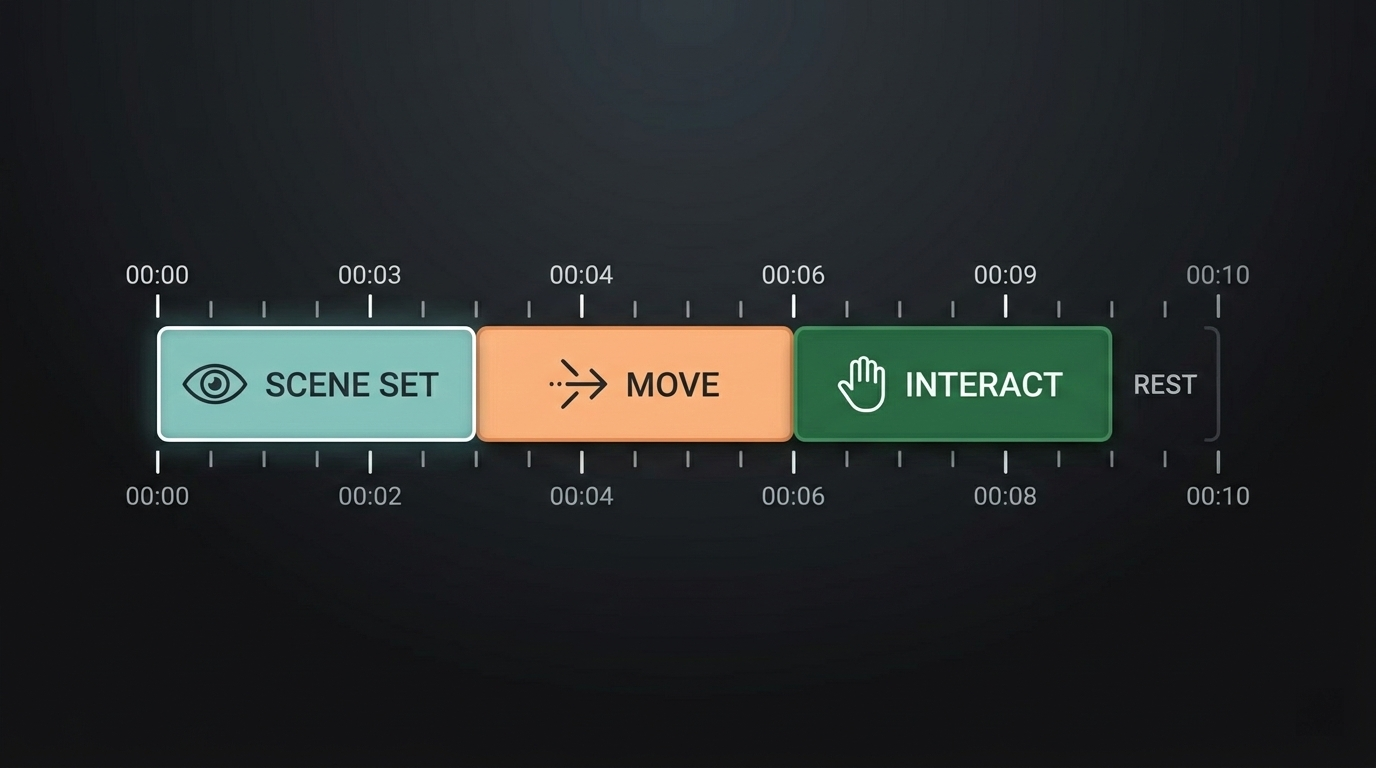
High-end video models like Veo 3.1, Sora 2 Pro, and Kling 2.5 Turbo are built to handle sequential data. The standard practice for these tools is chopping a 10-second clip into 3-second Segmenting Actions blocks:
[00:00-00:03] Establish the scene: wide shot of a mountain valley at dawn
[00:03-00:06] Gentle camera pan right, revealing a solitary figure on the ridge
[00:06-00:08] Close-up on the figure's face as the first light hits
[00:08-00:10] Pull back to wide as the sun crests the horizon
Each block gives the AI a narrow, focused window. The visual consistency improves because the model is not trying to render “dawn,” “a person,” and “a sunrise” in the same frame — it processes them in the exact order you specify.
Transition Library: Bridging the Segments
To prevent your video from looking like a slideshow of disconnected clips, use motion keywords to bridge the segments:
| Transition Type | Example Phrase | Effect |
|---|---|---|
| Camera movement | “Gradual push toward subject” | Builds tension |
| Pan | “Gentle camera pan from left to right” | Reveals environment |
| Dissolve | “Cross-fade from night to morning light” | Passage of time |
| Focus shift | “Rack focus from background to foreground” | Draws attention |
Example: [00:05-00:07] Gradual zoom on the subject's face to heighten emotion. This turns separate segments into one continuous story.
Terminal Timestamps: The PS1 Variable in Bash
In a developer environment, setting up effective timestamp prompts means configuring your shell. The PS1 variable in Linux controls how your terminal prompt looks. Adding real-time timestamps creates an automatic audit trail and helps track how long commands take to execute.
Based on insights from the DEV Community, here are the four main format specifiers for time in Bash:
| Escape Sequence | Format | Example Output |
|---|---|---|
\t |
24-hour time (HH:MM:SS) | 14:35:22 |
\T |
12-hour time (HH:MM:SS) | 02:35:22 |
\@ |
12-hour time with AM/PM | 02:35 PM |
\A |
24-hour time (HH:MM) | 14:35 |
To persist the change, open ~/.bashrc and add:
export PS1="\D{%F %T} \u@\h:\w$ "
This places the full date and time before every command prompt, creating an automatic log of when each command was executed.
Zsh and Oh My Zsh: Modern Shell Timestamps
Standard Bash guides miss the mark for Mac users, since modern macOS defaults to Zsh. Setting up effective timestamp prompts in Zsh means editing .zshrc instead of .bashrc. Zsh offers more customization room, including right-side prompts (RPROMPT) that display information without cluttering the input area.
Using Powerlevel10k
If you use a theme like Powerlevel10k, timestamps are usually built-in. Toggle them with:
p10k configure
Manual Zsh Setup
For a manual configuration, add this to your .zshrc:
PROMPT='%D{%L:%M:%S} %n@%m %~ %# '
This gives you a clean, timestamped interface where every command is anchored to a specific second — the same precision principle that drives effective AI video prompting.
FAQ
What are the best AI models for precise timestamp-based video editing?
Veo 3.1 and Sora 2 Pro are the top choices for temporal accuracy, supporting frame-accurate changes. Kling 2.5 Turbo excels at high-fidelity motion control. Open-source models like Stable Video Diffusion are powerful but typically require extra tools or “FramePack” extensions to achieve the same level of timestamp precision.
How do I fix synchronization issues between prompt timestamps and AI-generated visuals?
Shorten your segments. Blocks of 2-3 seconds are significantly more accurate than longer ones. Use “anchor descriptors” at the start of every new timestamp block to refocus the model on the subject. Watch for conflicting motion keywords that might overlap across different time markers.
Can I use timestamp prompting for audio-only AI generation or transcripts?
Yes. Models like ElevenLabs and Suno use time-stamped cues such as [00:05] [Whisper] or [00:10] [Laughter] to handle emotional shifts in speech. For transcription, OpenAI’s Whisper uses timestamps to sync text with audio frames. Timestamp prompting in audio ensures that sound effects or tone changes hit exactly when they should.
Conclusion
Setting up effective timestamp prompts is the bridge between random AI outputs and professional-grade results. Whether you are building a complex video sequence with Veo 3.1 or configuring your terminal with the PS1 variable, time markers provide the structure that transforms imprecise tools into reliable instruments.
Start by breaking your next video prompt into 3-second intervals using clear [00:00] markers, or update your .zshrc today with the %D format to track your command history with second-by-second accuracy.